
Signal Security Checklist
This guide helps you take control of your private conversations on Signal. While Signal already encrypts everything you send, these extra steps ensure your chats stay private, even if your phone is lost, taken, or compromised. You'll learn simple ways to protect your messages, notifications, and identity.
See also: Here's a great guide on how to use Signal groups for activism.
Hide your identity on Signal
This section is for anyone doing activism or advocacy work.
Don't use your real name or photo on your Signal profile
Helps protect you from cops or attackers who want to de-anonymize you. Especially useful if you are in unvetted Signal groups.
A lot of community organizing happens in unvetted groups on Signal where you don't know how much you can trust everyone in the group. These groups can be infiltrated by right-wing adversaries and law enforcement.
Using a fake name prevents someone from finding your real identity through a Google Search.
Using a photo that isn't your face prevents someone from finding your social profiles based on an image match or facial recognition.
Both steps help defend you against doxxing and online harassment.
How to change your profile
Change your profile display name: Signal > Settings > Tap on your name/icon near the top > Click the top item with the silhouette of a person > Edit your profile display name
Change your profile photo: Signal > Settings > Tap on your name/icon near the top > Edit photo > Upload a generic photo that you found online that doesn't relate to your identity/preferences/interests/location.
Remind people in your groups to do this as well. Security is a team sport.
Enable username and hide phone number
If you want to have the option to be anonymous on Signal, protecting your phone number helps protect your identity.
If you installed Signal before March 2024 when they introduced usernames, your phone number may still be set to be visible to others.
How to enable usernames and hide your phone number
Make sure you first change your profile display name (see the above item). If your Signal profile display name is your full name, then hiding your phone number will only be slightly helpful.
If you want to change your username: Signal > Settings > Tap on your name/icon near the top > Tap the @ symbol > Edit username > Set the username to something completely unrelated to your identity, or any usernames you've used anywhere before. It must end in at least 2 numbers.
Hide your phone number: Signal > Settings > Privacy > Phone Number > Under "Who Can See My Number" > Select "Nobody".
Optionally, you can change "Who Can Find Me By Number." But this will mean that none of your existing contacts will know that you're on Signal already unless you message them first. Only change this to "Nobody" if you need very high levels or privacy.
Share your username instead of your phone number: If you're connecting with someone new for political purposes, share your username. Signal > Settings > Tap on your name/icon near the top > QR Code or Link > Share either the QR code or the link with someone you want to be in contact with. Or more simply, just tell them your username.
Disable link previews
Can protect you against your approximate location being revealed
This protects you from certain attacks. But make sure you always take a close look at the URL that you're being sent to see if it's from a site you feel comfortable opening.
How to disable link previews
Signal > Settings > Chats > Disable "Generate Link Previews"
Technical Background: An attack was published in 2025 that allows an attacker to estimate your location within about 250 miles.
Protect your messages & calls
This section is for anyone doing activism or advocacy work.
ImportantChange your default settings so all new Signal threads have disappearing messaged enabled
This keeps everyone safer if someone's phone is ever confiscated or breached.
The best upgrade everyone can make to their use of Signal is to make sure that disappearing messages are enabled by default. Most activists we talk to haven't enabled this by default. (And most people forget to enable it manually for each new thread.)
This keeps you safe and other people safe. We don't know who's phone will be seized by law enforcement. Even if we believe we're talking about perfectly legal things, the government can find ways to twist our words to attempt to make a case against us for our dissent
There are two things to track related to disappearing messages:
First, change your default so any thread you make has this feature enabled.
Second, make sure it is enabled for threads that other people start: if someone else starts the thread, it may not have disappearing messages enabled. You may need to enable it.
How to enable disappearing messages
To change the default: Signal > Profile picture > Settings > Privacy > Disappearing Messages > Set to your desired time (longer or shorter depending on your risk tolerance).
(Android-only) Change your message retention limit: This will delete messages on threads even that don't have disappearing messages turned on. (They will only be deleted on your device.) Signal > Profile picture > Data and storage > Manage storage > Keep Messages > Set to your desired max timeframe. Go back a screen and enable "Apply limits to linked devices".
To change existing threads: Signal > Open the message thread you want to change > Click on the person's name (or group name) at the top of the screen > Disappearing Messages > Set to your desired time
Delete old messages/threads: Disappearing messages does NOT apply retroactively. So you may want to delete old threads on your phone. This will not delete them on other people's phones, unfortunately. So if it is very sensitive, you may need to ask them to also manually delete the thread. (And while you're at it, encourage them to turn on disappearing messages by default!)
Choosing your disappearing message time: How long you set your disappearing times depends on the sensitivity of your messages. A question you might ask yourself is "if someone's device was confiscated or hacked, how important is it that these messages are not accessible?"
For chatting about low-risk things with friends, you might choose 4 weeks.
For standard political organizing, you might choose 1 week.
For a direct action, you might set it to 1 day or 1 hour or 5 minutes, so the messages are gone before the action starts.
Note: Message only disappear after the message has been read. So if the recipient doesn't read it for 2 weeks, and you have disappearing messages set to 4 weeks, it will actually disappear 6 weeks after you sent it.
Hide message preview and sender name for Signal notifications
If your phone is confiscated (and still on), the cops can read the messages on your home screen without unlocking it.
How to disable Signal notifications
Open Signal > Settings > Notifications > Notification Content > Select "No Name or Content"
Enable "Screen Lock" and "Hide in App Switcher"
If you hand your phone to someone, Screen Lock is an extra layer of security.
Screen Lock: If you hand your phone to someone while unlocked, this ensures they they must provide the face/fingerprint/PIN unlock again before opening Signal.
Hide in App Switcher: This will hide your messages when switching between apps.
How to hide screen in App Switcher
On iPhone: Signal > Settings > Privacy > Enable "Screen Lock" then enable "Hide Screen in App Switcher."
On Android: Signal > Settings > Privacy > Enable "Screen lock" then enable "Screen Security."
Leave Signal groups that might put others at risk
This helps protect your network if your phone is confiscated.
If your phone is confiscated by law enforcement, one of the biggest risks is exposing your entire network. Even if people aren't using their real name on their Signal account, there is still a unique ID behind every Signal username. And the cops can use this to correlate someone's identity across many seized devices.
You need to both leave AND delete the group:
If you only leave the group, old messages stay on your phone as well as the history of who was in the group.
If you only delete the group, new messages will still come through and the thread re-appears.
How to leave AND delete a Signal group
Make a plan to re-join afterwards: When headed into a situation with possible arrest, make a list on paper at home or somewhere safe of all the groups and who you need to message who can re-add you after the action or border-crossing is complete.
To leave the group: Signal > [Group] > Tap the group icon at the top > Click “Leave group” at the bottom.
If you're the only admin, you have to either remove all members or assign another admin.
To delete the group from your phone: Signal > Main screen > Swipe left on the thread > "Delete.”
This won't delete it for anyone else.
Security hygiene tips:
Set a recurring remind to clean up your Signal thread every 3 months.
Make sure you take note of which groups you are leaving and who you can ask to re-add you after the action.
Note: If you find this process very annoying and cumbersome (because it is!), that's another good reason to use a secondary phone for actions. That phone would only ever be in the one or two groups needed to pull of the action that day.
Enable Signal PIN and Registration lock
Protects you from advanced attacks where someone "steals" your phone number and registers it on Signal
A highly-motivated attacker could try to take over your cell phone number through something called "SIM Swapping" or by trying to call your service provider and initiate a phone number "port" to a new provider. They could then use your phone number to register a Signal account and start receiving messages meant for you.
These are advanced attacks that don't happen to most folks. Still, it is easy to protect your Signal account.
You can protect yourself by enabling registration lock on Signal. It prevents someone from hijacking your account even if they steal your phone number. No one will be able to register a new Signal account on your number until your account has been inactive for 7 days.
If you forget your PIN, you will have to wait 7 days before you can create a new account (and your contacts will not be recovered). More on PINs & registration lock.
How to enable Signal PIN and registration lock
Enable registration lock: Signal mobile app > Profile Picture > Settings > Account > Enable "Registration Lock"
Upgrade your PIN: You had to set a Signal PIN during setup. If you don't remember it or want to use a stronger PIN, here's how:
Generate a strong PIN: For maximum security, use a PIN that is 8 or 10 digits and make sure it is computer-generated. Here's a random PIN generator you can use.
Set a Signal PIN: Signal mobile app > Profile Picture > Settings > Account > Create/Change PIN (If you don't already know what your PIN is).
Save your PIN or enable PIN reminders: If you have a password manager you use reliably, save your PIN there. If you think you might forget where you saved your PIN, leave "PIN reminders"
Enable a private keyboard for Signal (Android-only)
On Android, the default keyboard can log what you type.
How to make sure you have a private keyboard on Android
Note: This is for Android phones only. iPhones keyboards are already private unless you installed a custom keyboard.
OPTION 1 (easier) - Enable an incognito keyboard
Signal > Profile Picture > Settings > Privacy > App security > Enable "Incognito keyboard"
OPTION 2 (more private) - Replace the built-in keyboard system-wide
The option above simply "asks" the keyboard provider (Google) to not log your keystrokes. There is no guarantee it is abiding. The more secure move is to install a custom keyboard.
FlorisBoard is one good option. You must install F-Droid first, which is a more-private app store.
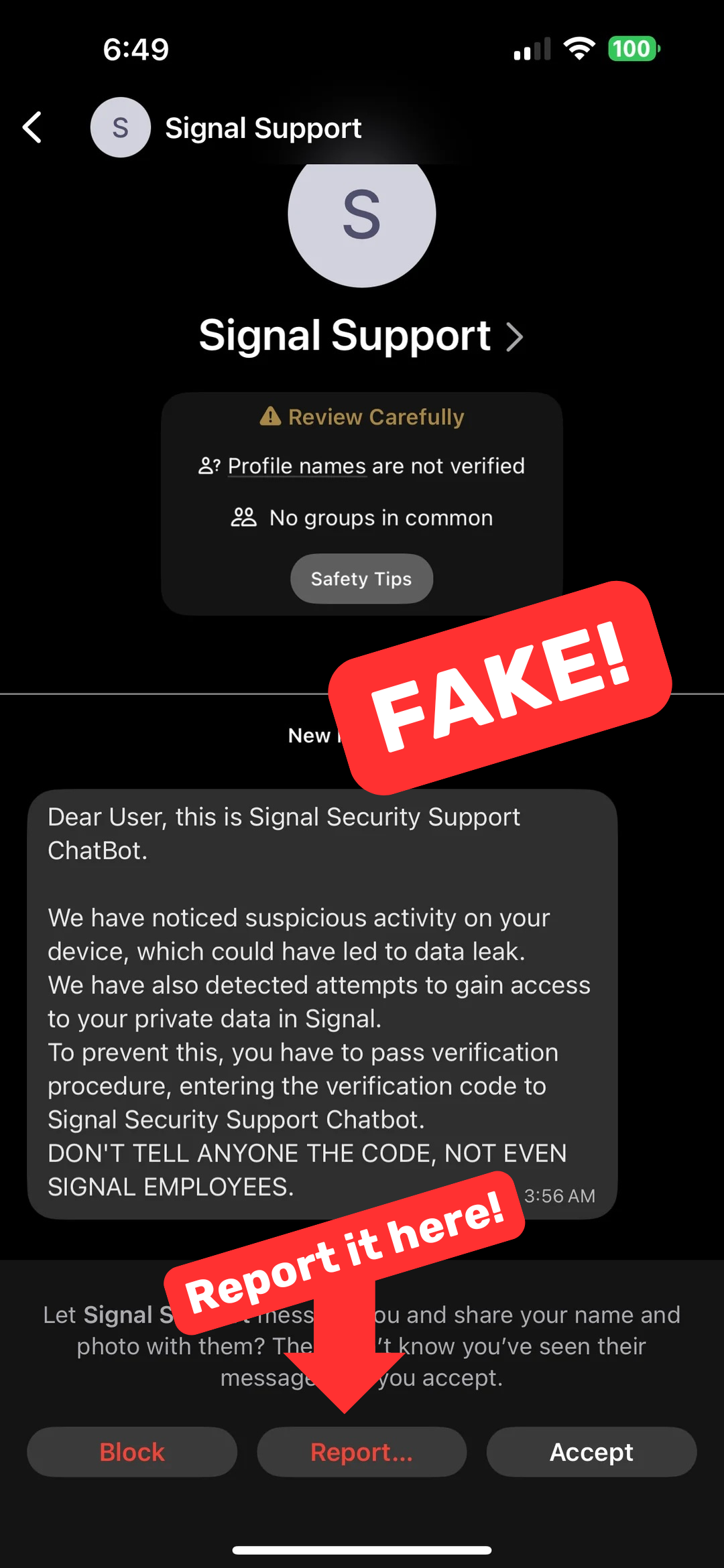
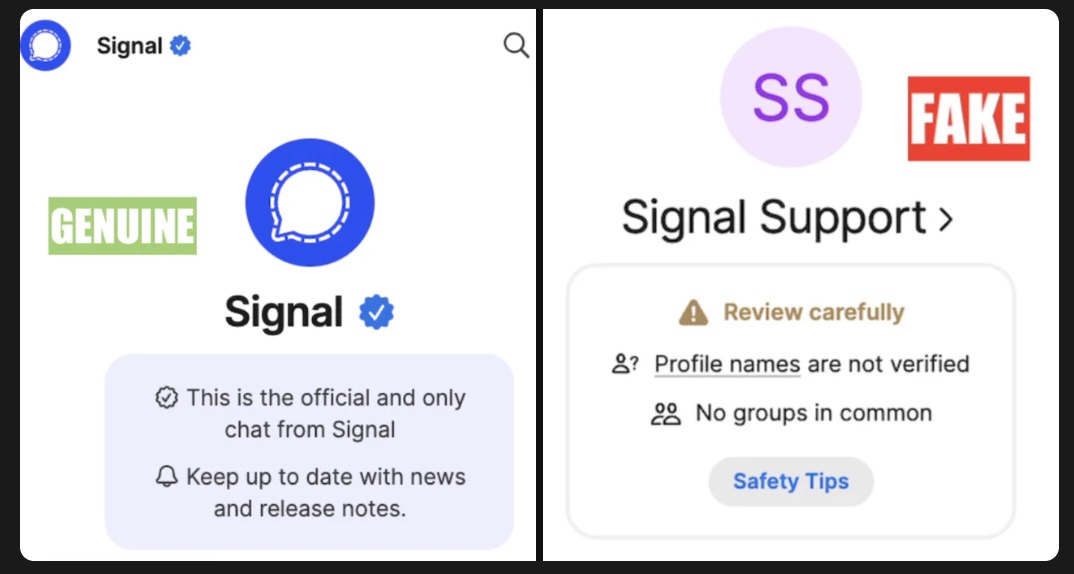
Be alert for fake messages from "Signal Support" trying to get your Signal PIN or verification code
Protect your account by being attentive not to to turn over your verification code or PIN
There have been an increasing number of fake messages from "Signal Support" that are attempting to hijack your account.
Use these examples below to keep an eye out for fake signal messages.
Remember: Signal will never ask you send them your PIN or verification code. It will only be asked of you when you are installing the app for the first time on a device.
Read more about Signal scams/phishing.
Here are some examples of scam messages:
Has Signal been hacked? Is it safe?
Every few months, we see posts circulate claiming that Signal isn't secure or has been hacked.
Has Signal been hacked? Almost certainly not.
What can happen is that someone infiltrates a Signal group and screenshots all of the messages.
It's also possible that the cops can confiscate your phone and break into it if you have a weak passcode. That's not a failing of Signal, though. All your messages are available if someone can unlock your phone. That's why we recommend having a strong passcode and always updating your device operating system.
Have Questions?
Let us know if you have questions or feedback so we can make these guides as useful as possible.